




Dim when away
Turn on “Dim When Away” and choose a delay. The default is 10 minutes. You can also dim the screen immediately.

For AI computer use
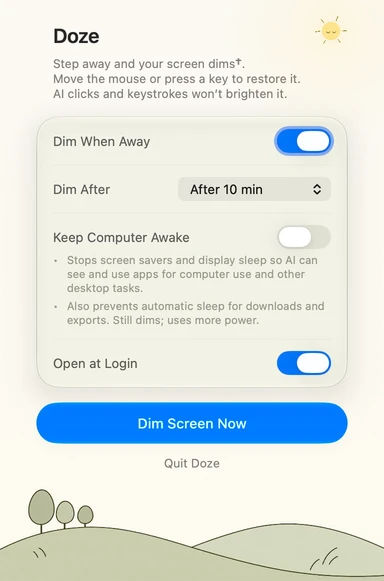
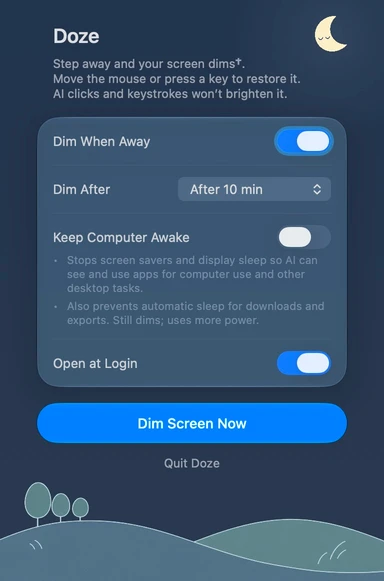
Automatically dim your screen when you step away. Enable “Keep Computer Awake” so display sleep and screen savers don’t interrupt AI computer use.
Turn on “Dim When Away” and choose a delay. The default is 10 minutes. You can also dim the screen immediately.
Move the mouse, use the trackpad or press a key to restore brightness. Simulated clicks and keystrokes from tested AI tools do not brighten the screen; other tools may behave differently.
Supports built-in Mac displays and displays with system brightness control, such as Studio Display. Other external displays are not guaranteed. Whether the screen goes fully dark depends on the display.
Yes. “Keep Computer Awake” does not prevent either. Turning it off or quitting Doze restores your previous settings.