

We don’t make fonts.We just deliver yours.
Install your font files in the iOS font library. Use the installed fonts in compatible apps on the same iPhone or iPad.

Installation guide
Install your fonts. Use them in compatible apps.
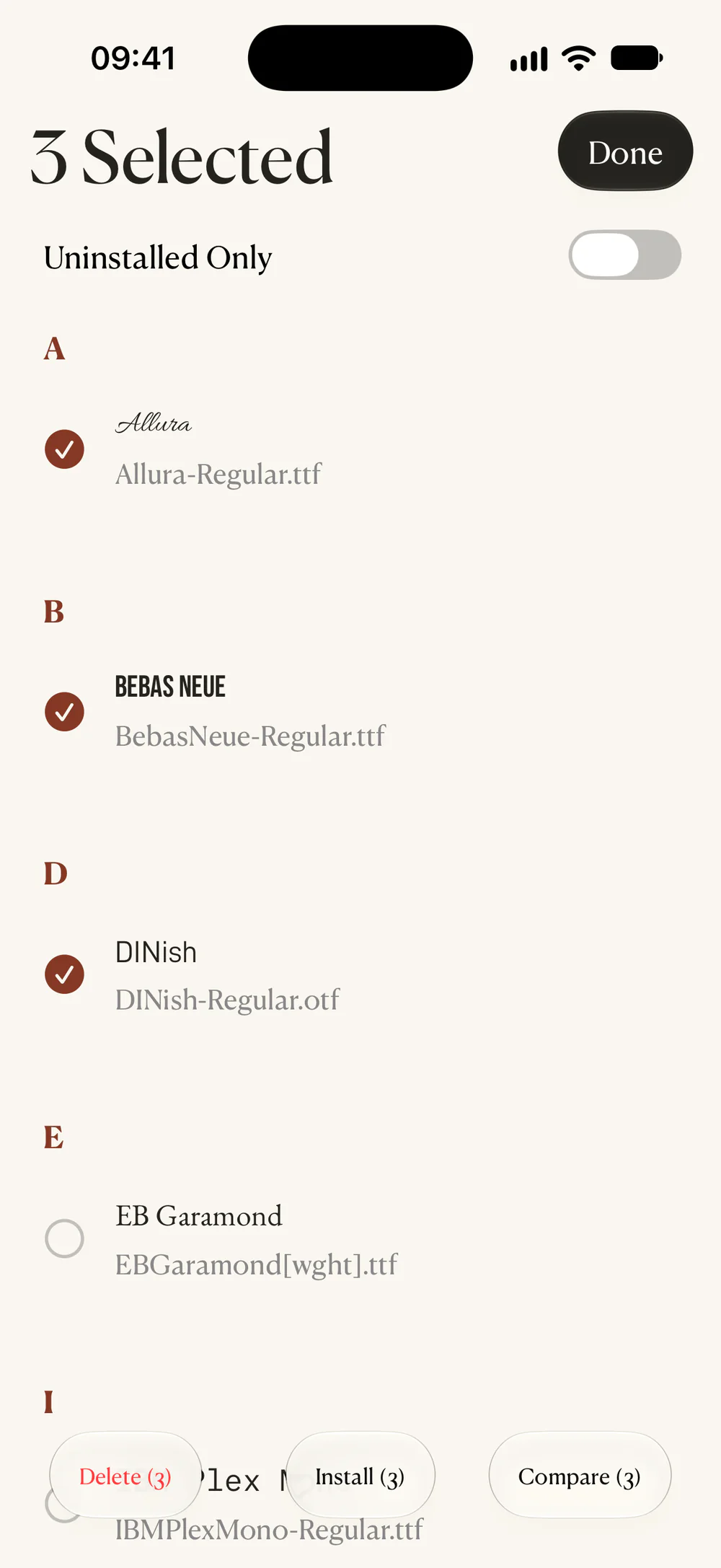
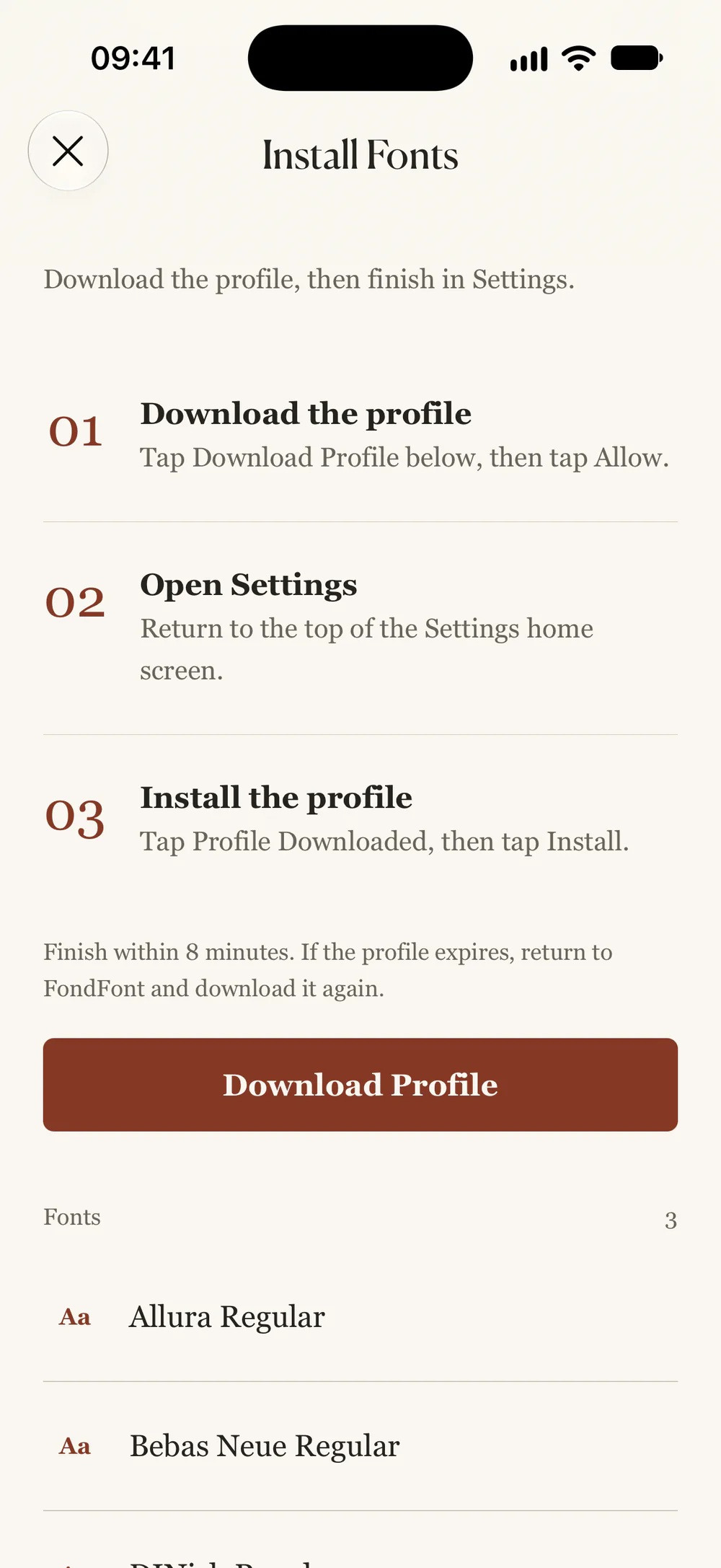
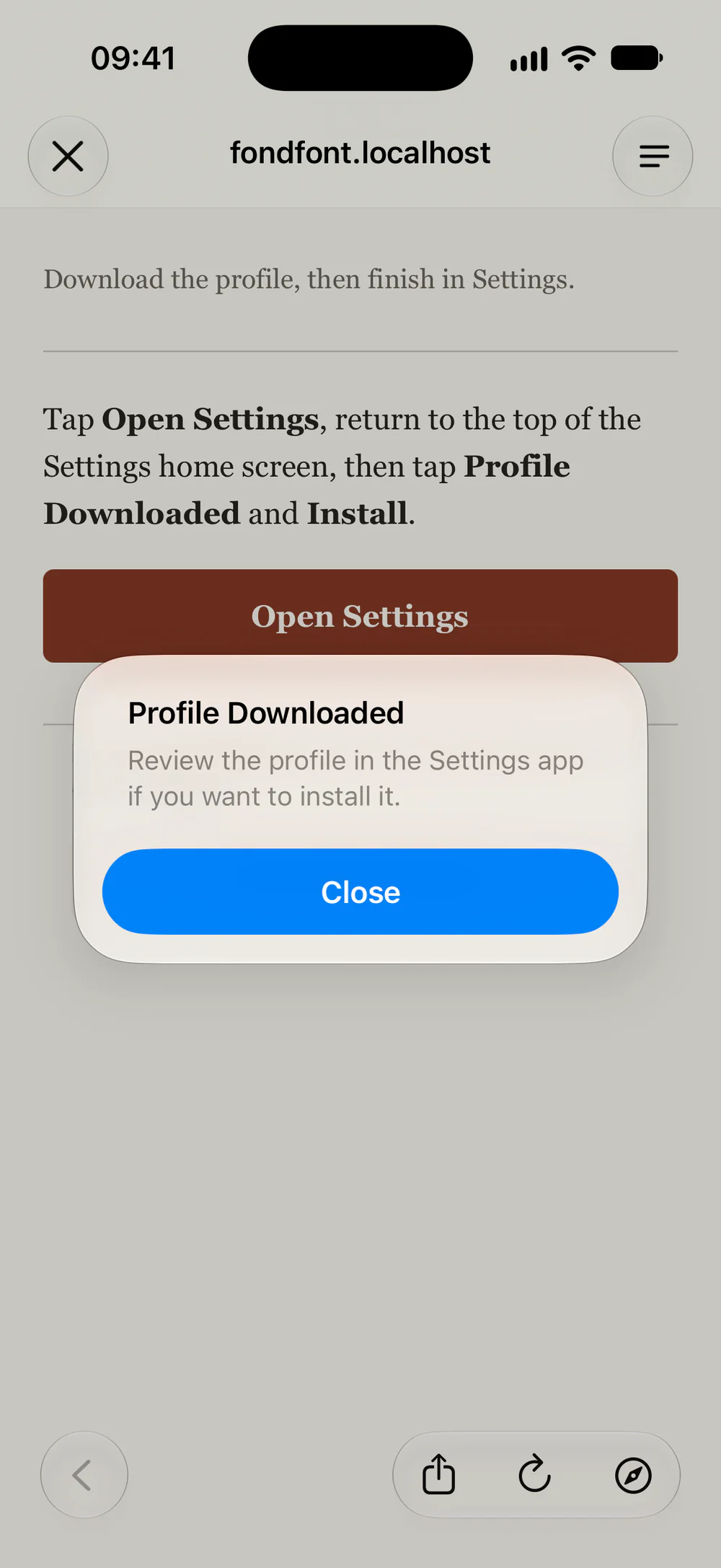
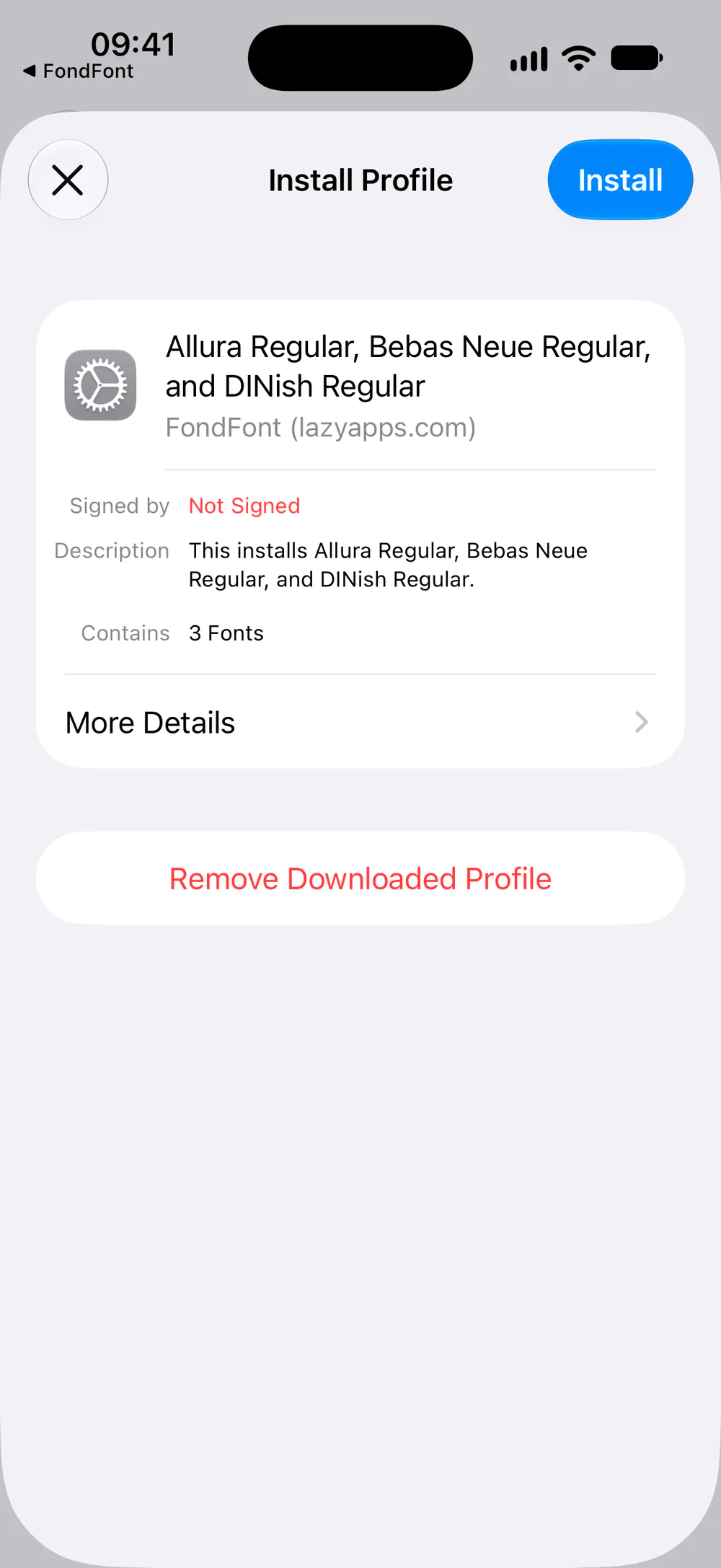
Install your fonts in four steps. Download a profile in FondFont. Complete the installation in Settings.
First, import your font files
Import from Files, iCloud Drive, AirDrop, or the share sheet.
TTFOTFTTCZIP
Use your installed fonts
Select your installed fonts from the font list in a compatible app. Compatible apps include Pages, Keynote, Word and PowerPoint. If the app is already open, close and reopen it to refresh its font list.
FondFont creates profiles on your device. Your font files stay on your device. You do not need an account or subscription.
- Preview
- Check your own text across different point sizes.
- Glyphs & metadata
- Inspect character coverage, family, style and license information.
- Compare
- Compare typefaces using the same sample text.
FAQ
Where can I use installed fonts?
Installed fonts work in apps that support the iOS font library. These include Pages, Keynote, Word and PowerPoint. Font support depends on the app.
Can I change the iPhone system font?
FondFont installs fonts for compatible apps. It cannot change the iOS system font, keyboard font or Home Screen font. It cannot add font support to other apps.
Why do I need to open Settings?
iOS requires profile installation in Settings. Allow the profile download first. Complete the installation in Settings. Profiles created on your device may appear as unsigned.
Does FondFont include commercial fonts?
Import font files that you own and have permission to use. FondFont also links to Google Fonts, Font Squirrel and Noto CJK. Check each font’s license before use.